A tour of the Veena studio
This Veena studio tour walks the screen from left to right: the sidebar, the transport bar, the timeline, the dock along the bottom and the CoProducer panel, your personal music producer. Every button below uses its exact name in the studio, so you can find anything in seconds and spend the session making music.
Veena studio tour: the left sidebar
A slim rail that widens when you hover over it.
- Library: your uploaded files, with an Upload button.
- Notes: a notepad for lyrics and ideas.
- Your avatar, ringed by your CoProducer allowance or credit balance (green, then yellow, then red as it runs down). Click it for the account menu: Settings, Export, Go to projects, Profile info, Upgrade account and Log out.
The transport bar
The 56-pixel bar across the top. On the left is the project name, which you click to rename. On the right are Share (invite someone into the session) and Save, which reads "Saving…" and then "Saved". The controls in the middle, left to right:
| Group | Controls | What they do |
|---|---|---|
| Add | Upload arrow (Import Audio/Video/MIDI File), Create MIDI Clip | Import audio, MIDI or video, or start a MIDI part |
| Song settings | Tempo, Change Time Signature, Change Key | 40–300 BPM (drag, or tap it in), 8 time signatures, 24 keys |
| Transport | Rewind, play, Record, loop | Record from your microphone, with a count-in of off, 1 or 2 bars |
| Grid and click | Grid Snap and its division options, Metronome | Snap to bars, beats or finer divisions; the click track |
| Edit modes | Toggle Split Mode (C), Toggle Mute Mode (M) | Click a clip to cut it, or to mute it |
The timeline
A new project starts with 6 tracks. A track holds audio, MIDI, drum, sampler or video clips, with mute and solo on every track header. Under the ruler, the song-section ribbon names your intro, verses and choruses; add, rename or delete sections there. Drag across the ruler to set a loop, and click anywhere to move the playhead.
Right-click a clip for Delete, Duplicate Selected Clip, Mute, Open Control Panel and, on audio, Reverse Audio, Auto-Tune and Separate into Stems. Right-click empty space for Create Empty MIDI Clip.
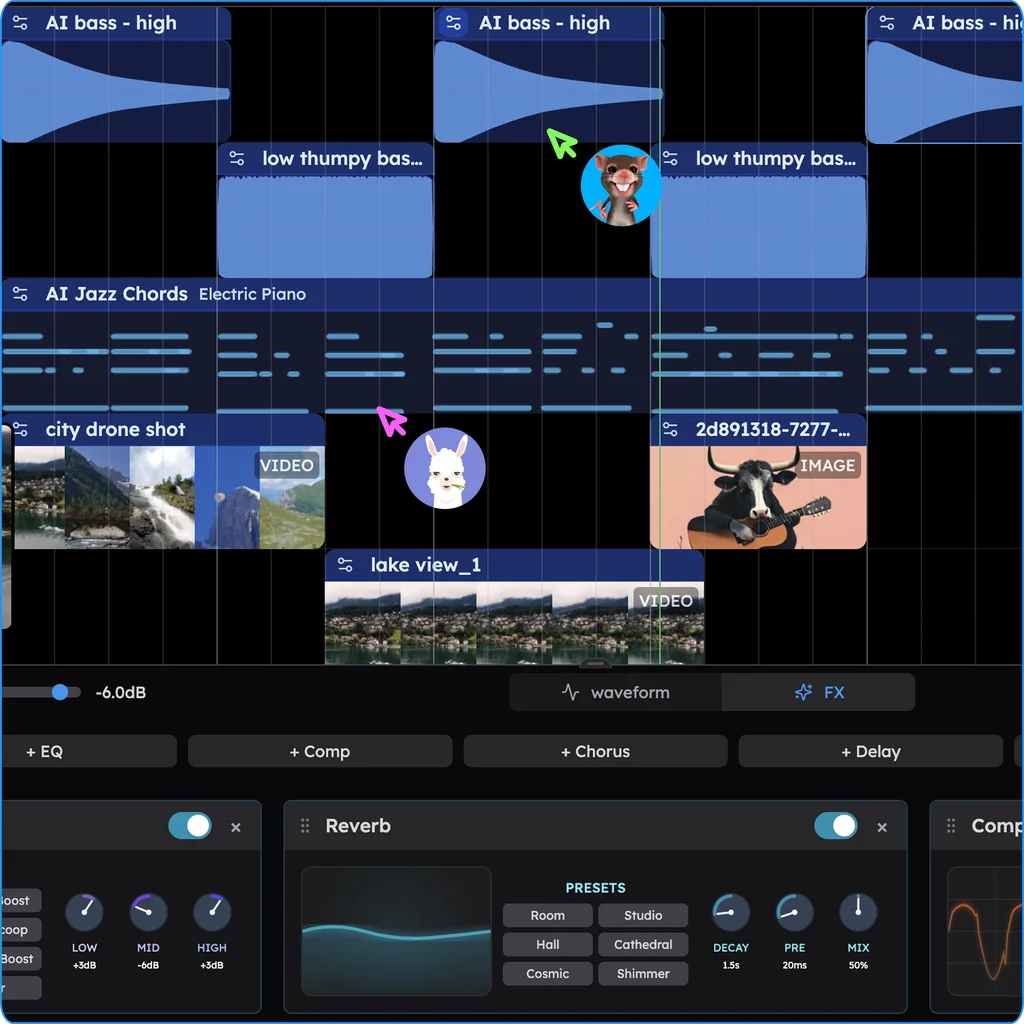
The dock and its panels
The bar along the bottom of the screen changes with the clip you select:
- MIDI clip: Piano Roll (called Beat Maker on drums), Instrument and FX. The piano roll has draw and select tools, a velocity editor, C0 to C9 and 8 snap settings. The Instrument tab holds 7 shelves (Piano, Guitar, Bass + 808s, Strings, Synth, Drums, MPC): 61 melodic presets, 39 of them on Veena's own synth with macro knobs, 7 drum kits and a 16-pad sampler.
- Audio clip: Waveform and FX.
- FX holds the 10 built-in effects (Utility, Reverb, Compressor, Chorus, Delay, Distortion, Phaser, Flanger, 8-Band EQ, Auto-Tune) and a slot for your own VST3 or AU plug-in through Veena Bridge.
At one end of the dock, Mixer opens a fader for every track (+6 dB down to silence) with pan, mute and meters, and a master volume that feeds a fixed limiter. At the other end, Ask CoProducer opens the CoProducer panel when it is closed; drag the button to move it.
The CoProducer panel
Type what you want and press Enter. While CoProducer works you see a status line, a collapsible "Thought" banner, a to-do strip and option cards: 3 per new part, or 10 when it searches for a sound. Drag any clip into the panel to give it as context. On a shared project, My chat is private and Shared chat is the one everyone sees.
Studio Settings
Opened from Settings or Export in the account menu, it has three tabs: Audio Settings (the Audio Buffer Size, from 128 to 2048 with 512 recommended, and the Input Device for your microphone), Export and Collaborate. Recording level and latency are measured under Calibrate, in the window the record button opens.
Keep going with the Veena keyboard shortcuts, edit MIDI in the piano roll and mixing in Veena, or make your first song. The Veena help centre has the rest, and the online DAW page covers the studio as a whole.
Try this in Veena
Make a 124 BPM house groove in G minor, 16 bars, on the TR909 kit: four-on-the-floor kick, offbeat open hats, a House Organ Bass line and Warm Pad chords, then set the levels so the kick and bass lead.
Frequently asked questions
What is the Veena studio?
Veena is an AI DAW with a personal music producer built in. Describe the song you want and CoProducer builds it with you — beats, chords, melody, arrangement and mix — as real tracks you can edit, mix and export. Free, in your browser. The studio is the workspace at daw.veena.studio: timeline, piano roll, mixer and the CoProducer panel.
Where is the export button in Veena?
Click your avatar at the bottom of Veena's left sidebar and choose Export. That opens Studio Settings on its Export tab, where you pick WAV, MP3, MIDI or MP4 (for projects with video), then Full mix or Stems. It shows the file count, names, quality and size before you export, on every plan and with no cap.
How do I open the piano roll or the mixer in Veena?
Select a MIDI clip and Veena's dock, the bar along the bottom of the screen, shows its tabs: Piano Roll (Beat Maker for drums), Instrument and FX. Audio clips get Waveform and FX. The Mixer button sits at the other end of the dock from CoProducer and opens the faders for every track.
How do I rename a project in Veena?
Click the project name at the left end of Veena's transport bar and type. A new project starts as "Untitled Project", and CoProducer may name it for you while that placeholder is still there. Your projects save automatically once they have a clip, so the new name reaches Your Projects without an extra step.
Meet your personal music producer
Free, in your browser. Describe the song you want and CoProducer builds it with you.
Make music free